 Relic Hunt
Getting started
Controls: Keyboard, Mouse and Touch
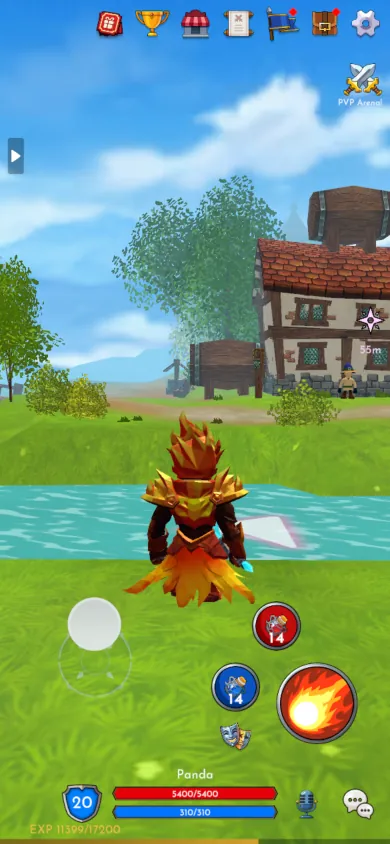
You can play with a keyboard and mouse or with just your fingers, in landscape or portrait. Much of the moment-to-moment work is automatic: the game picks a target, walks you into range and picks up loot as you pass.
Keyboard shortcuts
On a computer, movement and menus have keys, and attacks use the on-screen skill buttons.
- W A S D or the arrow keys: move. With the keyboard your hero runs.
- 1: drink a health potion. 2: drink a mana potion.
- I or Tab: open the inventory and character window.
- J or L: open the quest log.
- Enter: open the chat.
- T, held down: push-to-talk in voice chat.
- Plus and minus: zoom the camera in and out.
- Shift and click on a stack in the inventory: split the stack in half.
Mouse and camera
Hold the left mouse button and drag anywhere outside the menus to turn the camera. A short click on a monster targets it without moving the camera. The mouse wheel doesn't zoom, so use the plus and minus keys. Camera speed and vertical inversion are in the Controls section of Settings.
Touch controls
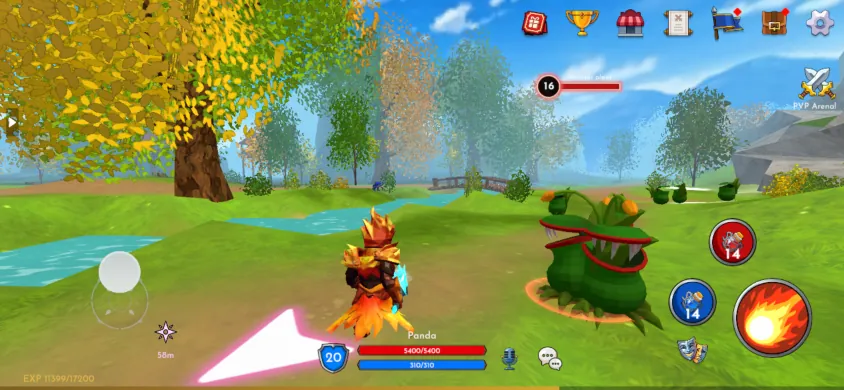
On a phone or tablet, the right part of the screen, about 40 percent of its width, controls the camera: drag there to look around. Touch anywhere else and a joystick appears under your finger. A light push walks, and pushing near the edge runs. While you hold the joystick, a second finger anywhere on the screen can turn the camera.
Tap a monster to target it. Only a quick tap with almost no finger movement counts, so dragging the camera never selects anything by accident. If the hero feels twitchy or drifts, tune joystick sensitivity and deadzone in Settings.
Targeting and attacking
You rarely need to pick a target by hand. The game keeps one for you: the enemy closest to the center of your view within about 20 meters. It holds that target while it stays in range and switches only when you clearly aim the camera at another enemy for half a second. When it dies, the game picks the next one, preferring enemies near the one that fell. Clicking or tapping a monster overrides all of this.
The skill buttons fire your weapon's primary and secondary attacks. Hold a skill button to keep attacking each time it's ready. You can keep moving while you hold it, but the camera stays still until you let go. Press attack with no target and a nearby enemy is picked for you. Not enough mana means the attack costs more mana than you have left, so press 2 or the mana potion button.
Auto-walk in combat
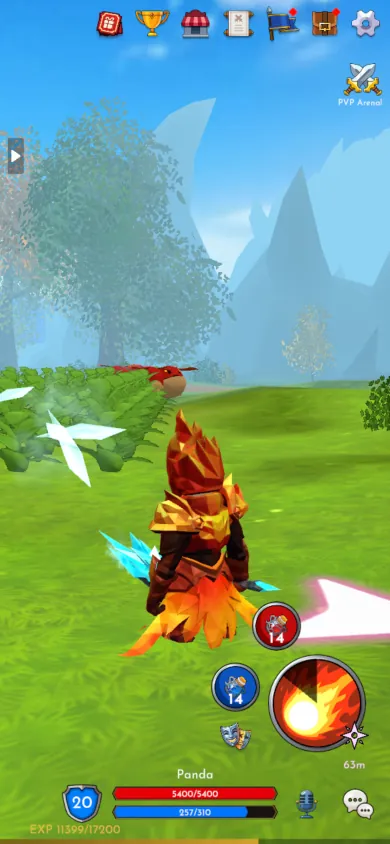
In a fight, if you attack from too far away, your hero walks toward the target on its own, and after a kill it heads for the next one. It stops at a comfortable distance inside your weapon's range, so archers and mages aren't dragged into melee. Any movement of your own pauses it at once, and moving steadily cancels it.
Portrait and landscape
You can switch orientation at any time. In portrait the camera pulls back to show more of the world and keeps the view level. During a fight it turns to face your target on its own, about a second and a half after you stop turning it by hand. In landscape the camera is all yours.
Interacting with the world
Walk up to a character or object and a button shows what you can do: Talk, Sell items, Sharpen, Recycle, Travel, Stash or, at an altar, Drop items. Press it to open the matching window.
Loot needs no button. Walk within about a meter and a half of a dropped item and it goes into your bag. If the bag is full the item stays on the ground, so make room and walk over it again.
Chat, voice and emotes
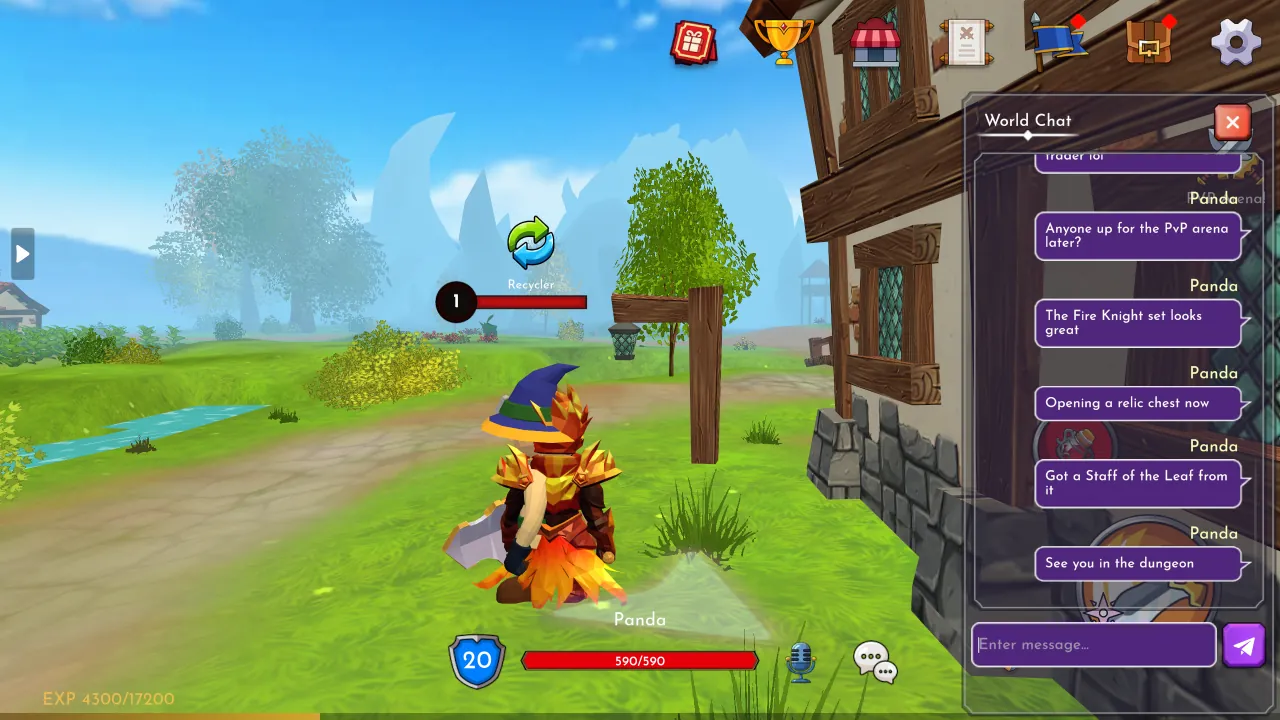
Press Enter or the chat button to open the community chat. Voice chat is push-to-talk: hold T on a keyboard or the microphone button on a touch screen. First turn the microphone on in Settings and allow it in the browser. The emote button plays a short animation everyone around you can see, and your first emote completes the Express Yourself task.
Stuck or lost
If your hero gets caught in scenery, open Settings and press Unstuck. Not sure where to go next? The quest log and quest markers always point to the next objective.