 Relic Hunt
Getting started
Settings, Quality Tiers and Fixing Stutter
Relic Hunt runs in the browser on everything from older laptops to new gaming PCs and phones. Most of its settings are there to fit the game to your device. The game can also pick a quality tier for you, and after a crash it falls back to a safe mode.
Audio and voice
The Audio section has separate sliders for music and sound effects, plus a mute button. The Voice Chat section sets how loud other hunters are and turns your microphone on. Its Mic test button shows a live level meter, so you can check your microphone before you speak. If the browser isn't allowed to use the microphone yet, Enable microphone asks for permission.
Controls
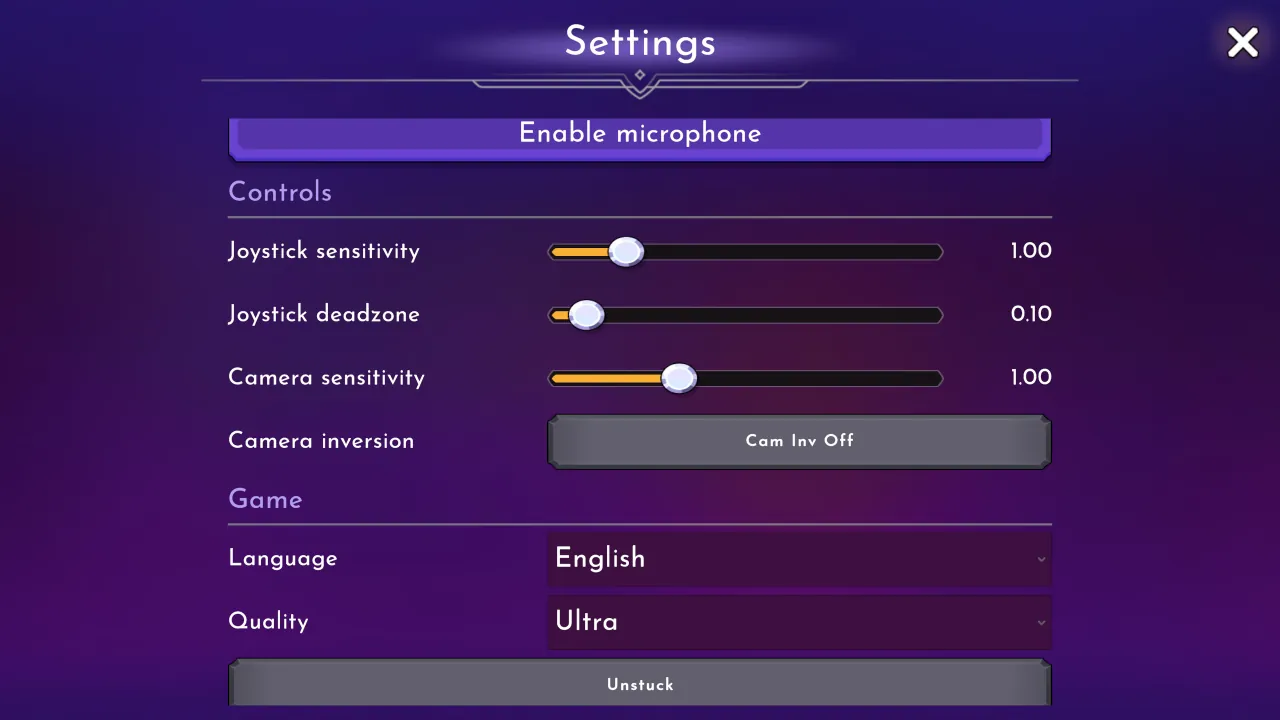
Joystick sensitivity changes how strongly a partial push of the on-screen joystick moves your hero. Joystick deadzone sets how far you must push before the hero moves at all. Raise it if your character drifts when you only rest a thumb on the joystick. Camera sensitivity sets how fast the view turns when you drag, and the camera inversion button flips the vertical direction. All of these are stored in your browser.
Language and quality
The Game section holds the language and quality choices. There are eleven languages: English, German, French, Spanish, Portuguese, Russian, Turkish, Indonesian, Vietnamese, Thai and Bengali. Changing either one restarts the game so it applies cleanly. Your progress is on the server, so nothing is lost.
What each quality tier changes
There are five tiers. Each one sets how far you can see before the world fades into fog, whether smoothing and post-processing are on and how many pixels are drawn on high density screens.
- VeryLow: view distance 50 meters, fog from 17 to 30 meters, no anti-aliasing or post-processing, standard resolution.
- Low: view distance 75 meters, fog from 20 to 45 meters, no anti-aliasing or post-processing, up to 1.25 times standard resolution.
- Medium: view distance 100 meters, fog from 35 to 60 meters, fast anti-aliasing, no post-processing, up to 1.5 times standard resolution.
- High: view distance 150 meters, fog from 35 to 85 meters, higher quality anti-aliasing, HDR and post-processing, up to 2 times resolution on computers.
- Ultra: view distance 200 meters, fog from 35 to 105 meters, the same effects as High, up to 2 times resolution on computers.
- On phones and tablets, High and Ultra stay at 1.5 times resolution and multisample smoothing is limited to 2x to keep the device cool.
How the game picks a tier for you
On first launch the game picks a tier based on your graphics chip. Most dedicated graphics cards get High and the newest get Ultra. Common laptop integrated graphics get Low, and older integrated chips get VeryLow. In a phone or tablet browser the automatic pick is one step lower than the same chip would get on a computer. A tier you choose yourself is kept.
The game also watches for crashes. If your previous session in the last day ended without closing properly, for example because the browser ran out of memory, the next launch starts in safe mode on VeryLow for that session. If this keeps happening, set Quality to VeryLow or Low yourself.
Why Low and VeryLow use less memory
Each tier loads its own version of the terrain, lighter on the lower tiers. The two lowest also change how the world loads. They skip preloading the ring of map pieces around you, download two pieces of the world at a time instead of four, and release the monster models of an area you left after 30 seconds instead of three minutes. That keeps memory use down on devices where the browser is strict about it.
Other tools in Settings
A few more tools in the window are easy to overlook:
- Unstuck frees a character caught in scenery. It moves you to the nearest free spot within a few meters, or back to your last spawn point if there is none.
- The overlay buttons turn on small on-screen readouts such as FPS. The FPS readout is on by default in the browser and handy when you compare tiers.
- Reset to default restores every setting. It also clears everything the game stored in this browser, including a guest hero's sign-in key, so link your account in the Account section first.
- The Account section links your hero to a Google or Facebook account.
If the game stutters
Try one change at a time. Lower Quality by one tier and watch the FPS overlay. Close other heavy browser tabs, since the game shares memory with them. On a phone, lower tiers also reduce heat, which keeps the frame rate steady over a long session. If the world loads slowly after travelling, give it a moment. On low tiers, map pieces are fetched as you walk instead of in advance.